Some of the instructions in this article require knowledge of time frames.
To learn how to create a time frame click here: How Do I configure Time Frames?
Using Star Codes
TIP: Diverting a user this way will also divert any calls in queues that this user is a part of (note that any other users the queue will continue to ring whilst the call is diverting).
An individual user can divert their own calls by dialling *71 followed by the number you want to diver to. For example if you want to divert to "03331887878" you would dial "*7103331887878".
Users can disable the divert by dialling *72.
The netsapiens platform will remember the last number input, so next time you want to enable the divert the user only needs to dial "*71" on it's own and it will divert to the last number used.
Without a User/Service
If you do not have an existing user or service to place the divert on, and you simply want to forward calls from the DDI to an off net number, the simplest way is using ring groups.
1. Navigate to the the "Users" tab and click on "Add Ring Group"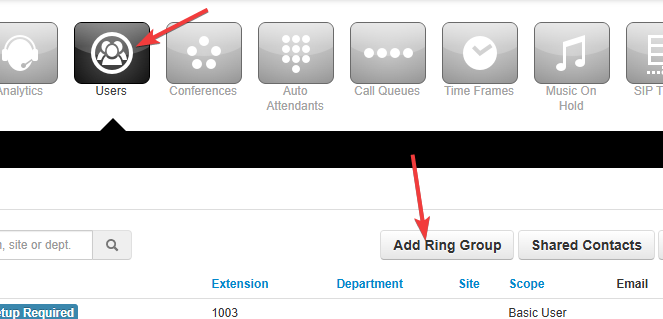
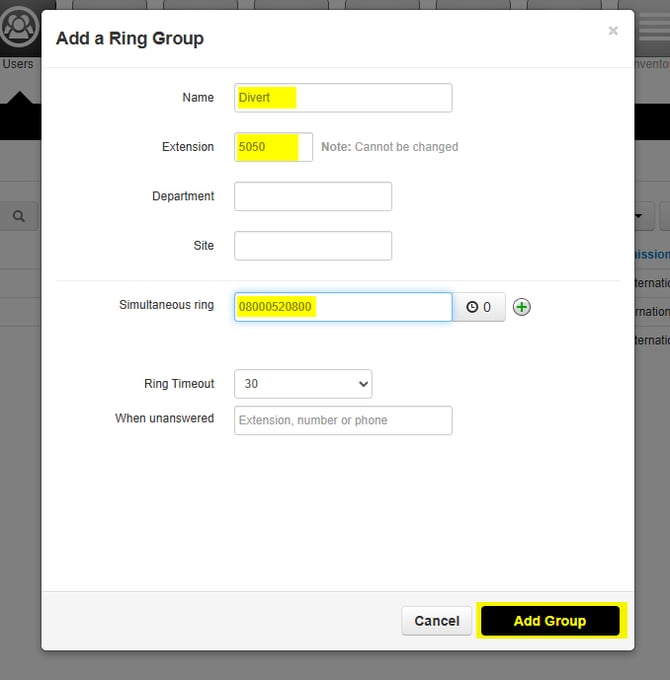
2. Give the ring group a name and extension number (you can also optionally give it a Department/Site). Then click "Add Group".
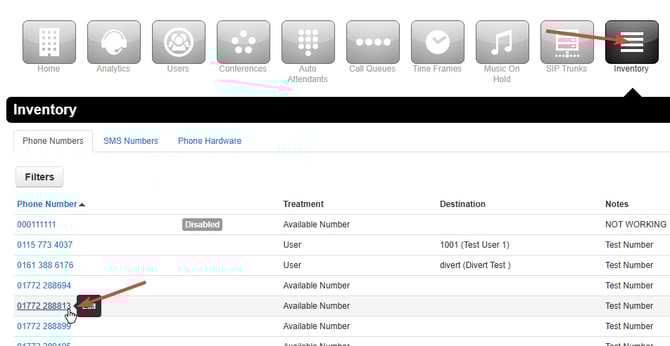
3. From here, select "Inventory" then click on the DDI you wish to divert.
4. Set the Treatment to "User" and enter the extension number of the ring group created, then click save.
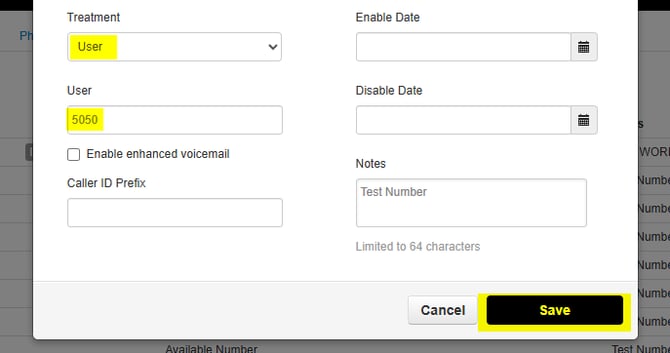
NOTE: If you want to modify you divert later, you need to navigate to the Users page an ensure that "Hide System Users" is disabled.
From here you can select your ring group to modify.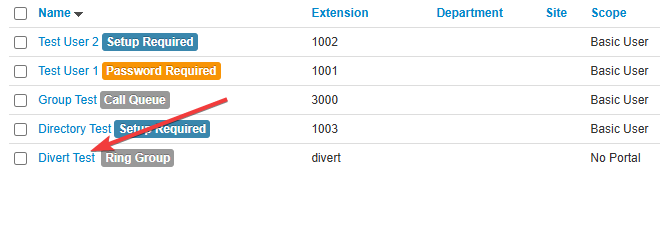
Diverting a User
You can place a divert on an individual user via the answering rules.
TIP: Diverting a user this way will also divert any calls in queues that this user is a part of (note that any other users the queue will continue to ring whilst the call is diverting).
1. Navigate to "Users" and click on the user you want to divert.
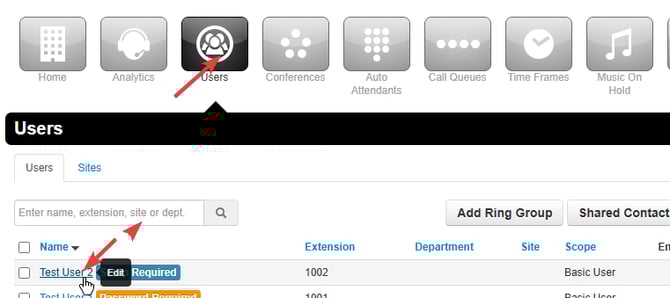
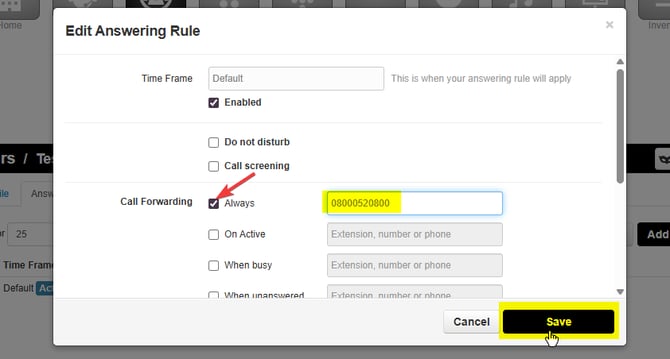
2. Select "Answering Rules" then select "Edit" on the "Default" rule.
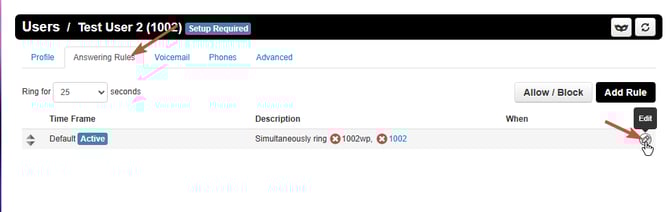
3. Select the "Always" Tickbox and enter the number you want to divert to, then click save.
Diverting a Queue/IVR
Diverting a queue or an IVR follows the same process, you need to utilize the underlying system user.
Before you begin you must create a time frame for the divert to use. If your divert is permanent then just create an "Always" Time Frame.
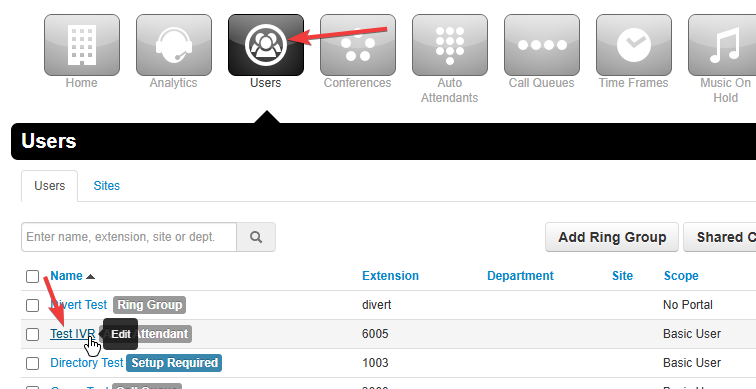
1. Navigate to "Users" and select the Queue/IVR you want to divert.
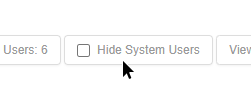
IMPORTANT: If you can't see the IVR/Queue in the list, you need to scroll to the bottom of the page and disable "Hide System Users".
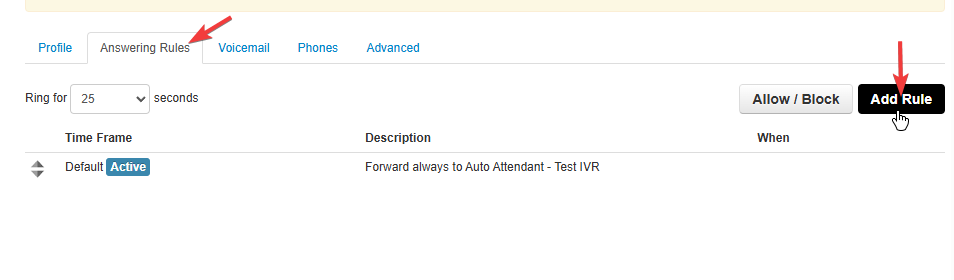
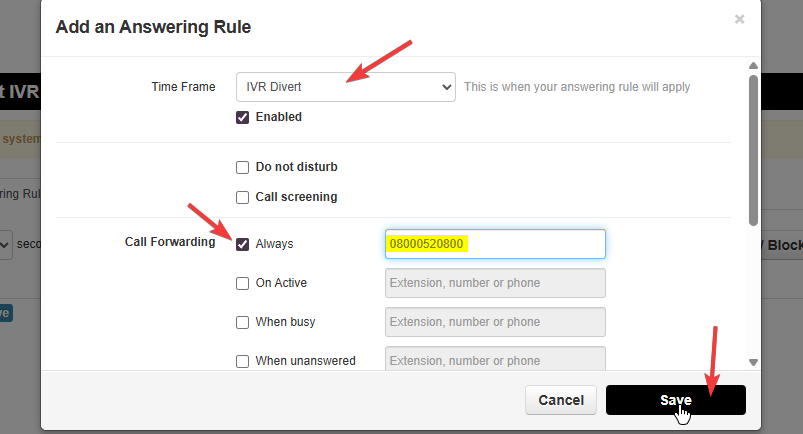
2. Click on "Answering Rules" then "Add Rule".
WARNING: DO NOT modify the default rule. This will break the Queue/IVR.
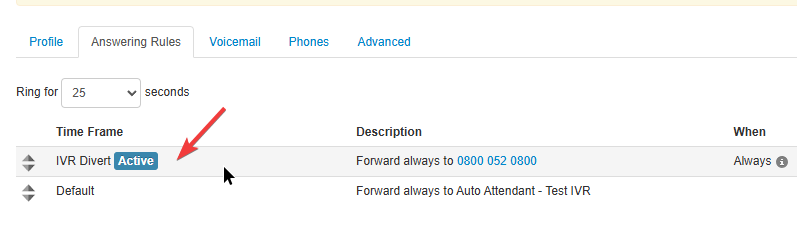
3. Select the time frame you created for the divert at the top of the window, then select the "Always" tickbox and enter the number you want to divert to in the box. When done click "Save".
5. Make sure your divert answering rule appears at the top of the list above any other rules, otherwise it will not be active (you can click and drag to move it).