IMPORTANT: The HT801 and HT802 are known to be slow to provision. Once you finish the below process ensure you give it at least 5-10 minutes.
TIP: The HT801 and 802 both support zero touch provisioning via the Grandstream GAPS/GDMS servers. For this we recommend you speak to your Grandstream distributor for more details.
This article assumes you've already added the device to the Netsapiens portal.
To auto-provision a HT801/802 you first need to log into the ATAs web interface. This will require you get the IP address of the ATA.
There are 3 main methods you can do this:
- Connect a phone and dial ***, when prompted dial 2 and it will read out the IP address
- Use an IP Scanning utility tool.
- Log into the router and find it in the connection list.
Once you have the IP address open a web browser, input the IP into your address bar and hit enter.
The following steps different depending on weather or not your device is on V1 or V2 firmware.
Grandstream HT801v2
You should be presented with the below login screen.
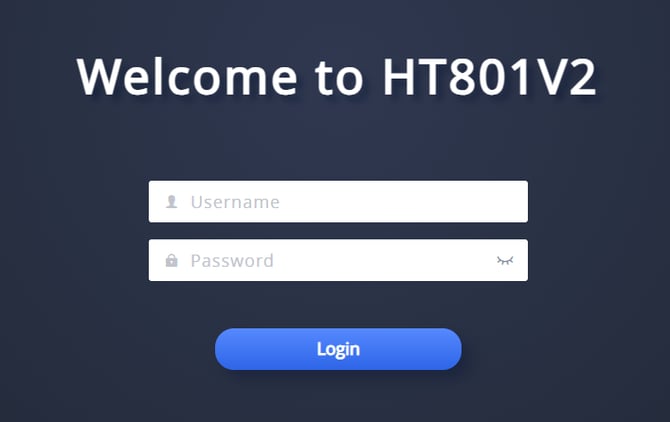
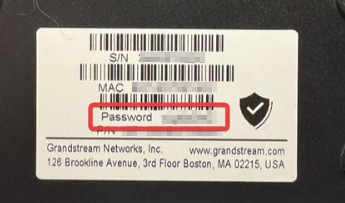
The username is "admin" and the password can be found on the sticker on the back of the ATA. When you enter this the ATA will prompt you to change the password.
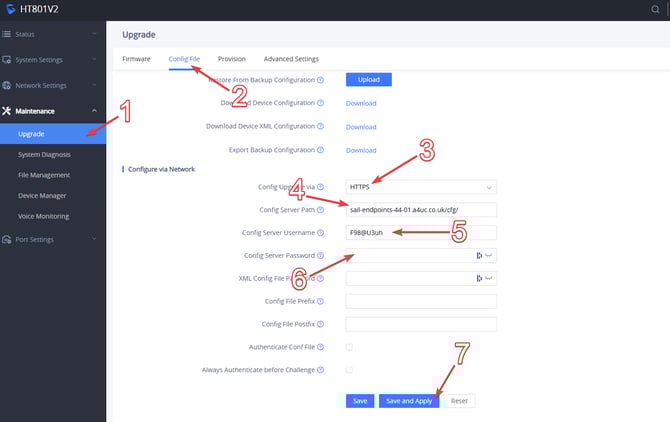
Once logged into the device follow the below steps:
- Navigate to Maintenance -> Upgrade
- Along the top navigate to Config File
- Set Config Update via to HTTPS
- Set Config Server Path to sail-endpoints.a4uc.co.uk/cfg
- Set Config Server Username to F98@U3uh
- Set Config Server Password to the one time global provisioning password (contact support if you don't have it)
- Click Save and Apply this will reboot your ATA and begin the auto provisioning process
Grandstream HT801
You should be presented with the below login screen. The default logins for a HT801 are admin/admin.

Once you're logged in, click on "Advanced Settings
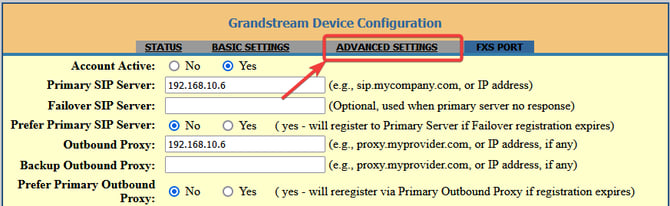
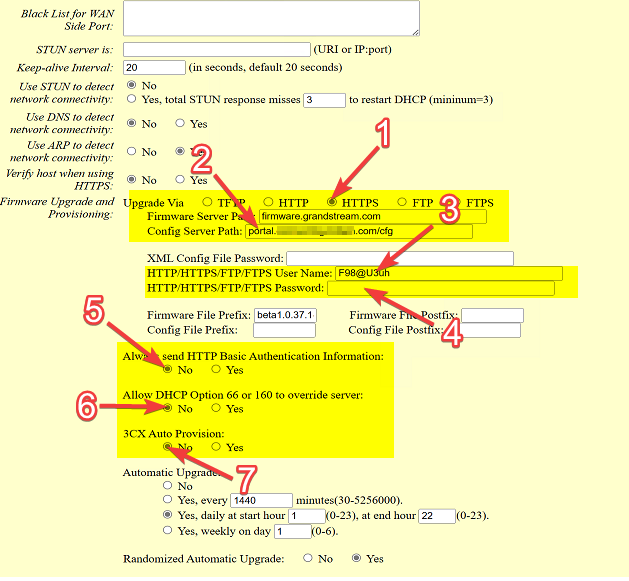
You want to configure the device like below:
- Upgrade Via: HTTPS
- Config Server Path: sail-endpoints-44-01.a4uc.co.uk/cfg
- HTTP/HTTPS/FTP/FTPS User Name: F98@U3uh
- HTTP/HTTPS/FTP/FTPS Password: Obtain from support.
- send HTTP Basic Auth: No
- Allow DHCP Option 66: No
- 3CX Auto Provision: No
Once done, select "Update" -> "Apply". Then from there go back into advanced settings and click "Reboot
TIP: If HTTPS doesn't work, try HTTP (and vice versa).