
IMPORTANT: We recommend using the AI Assistant to create compilations as most of the setup is automated.
Creating The Compilation
NOTE: Before creating a compilation you need to ensure you have configured which messages will play in the compilation.
- Head to "On Hold & Queue".

- Click on "Add Compilation"

- Ensure that the "Delivery Method" is set to "Stream".

- Configure the compilation to your needs (see here on how to do this). Then click create compilation.
Creating The Queue
IMPORTANT: The queue is what Studio uses to link the compilation to Netsapiens, if you don't follow this step the compilation will not work correctly.
- Click on "Queues".

- Click on "Create New Queue".
- Give the queue a name (this can be anything).

- Set the compilation you want syncing.
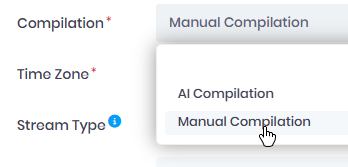
- Set the timezone that you want the Syncing to take place on.

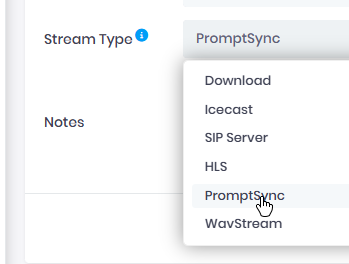
- Set the "Stream Type" to "Studio".
- Click "Create Queue".

Uploading the Compilation To Netsapiens
Once your compilation is ready, you can upload your compilation to the netsapiens portal by following this guide.