
IMPORTANT: Before ordering a phone number you must ensure there is a domain on the netsapiens portal for the number to be assigned to. See here for how to create domains.
First you want to navigate to the porting widget. How to access the porting widget.
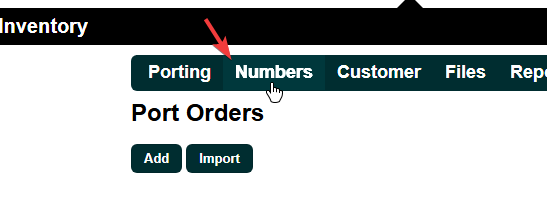
At the top left, navigate to "numbers".
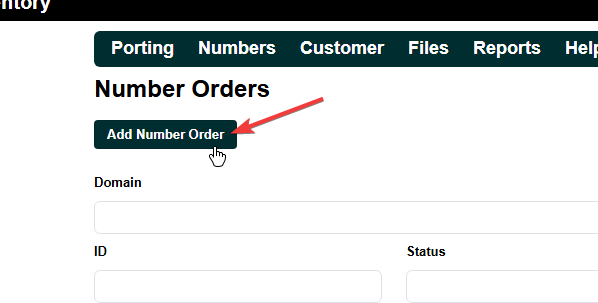
Now select "Add Number Order".
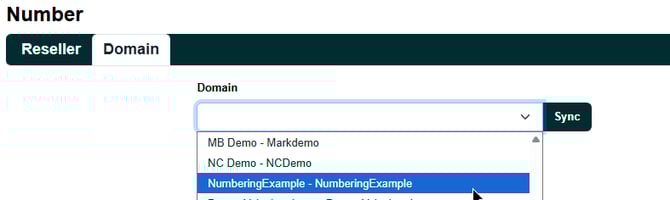
From here, select the domain you want to order a number to.
NOTE: If the domain doesn't show up in the list, click the "Sync" button then try again.
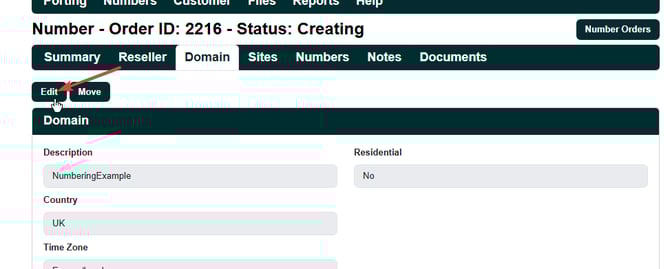
Head to the "Domain" tab.
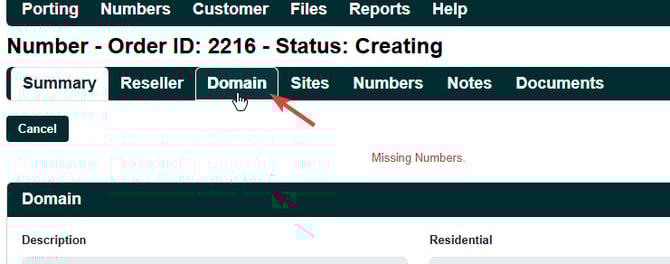
If you've placed orders against this domain before, there may already be an address on this page, however if there is no address or the number's address is different to the one that is shown, select "Edit".
IMPORTANT: The address configured here is added to the emergency database for this number. This means if a user dials 999 whilst presenting this number, the address here will show to the 999 operator as their location.
DO NOT set this to an address that doesn't belong to the customer that the number is going to.
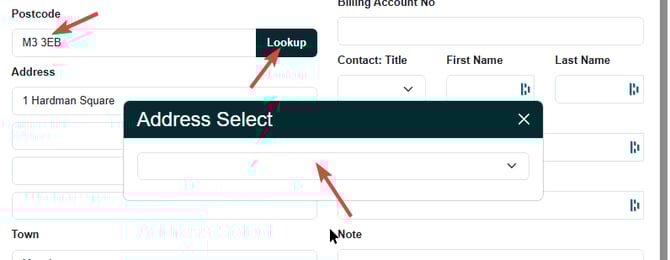
Enter the postcode then click "Lookup", then select the address from the list.
TIP: If the actual address doesn't show up, you can select the nearest address and then manually modify it afterwards.
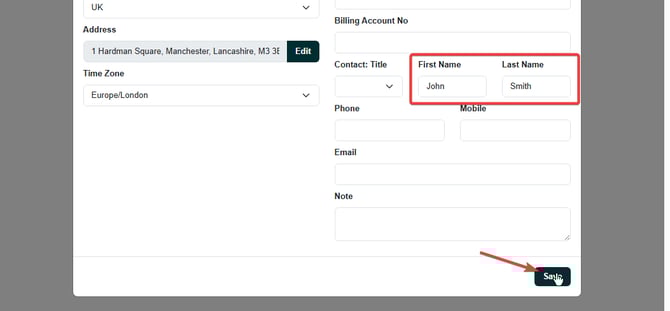
Enter the first and last name then click save. None of the other fields on this page are required.
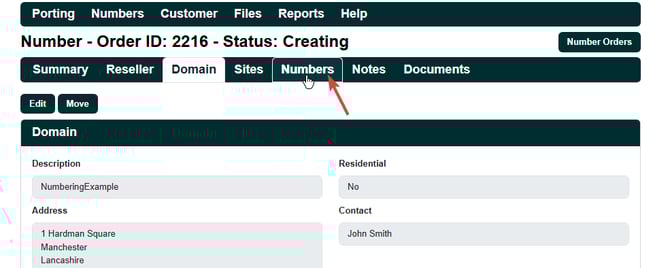
Navigate to the "Numbers" tab.
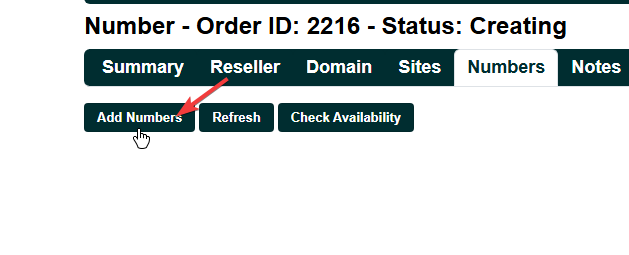
Click on "Add Numbers"
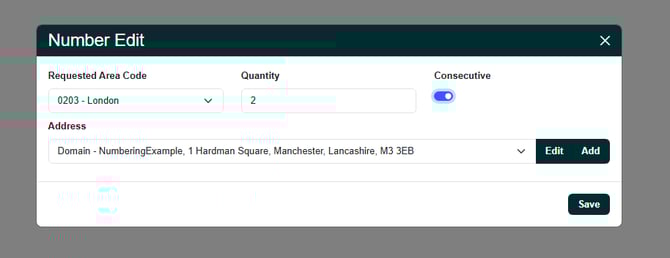
Select the area code you want, the quantity, and if you want them to be consecutive or not. Note that unticking "consecutive" does not guarantee that the numbers will not be consecutive, it just means that the system will not force the range to be consecutive.
Click save when you're happy with the selection
TIP: If you are ordering numbers to multiple physical locations, you can click the "Add" button next to the address to add separate site addresses to the same domain.
It is important that you do this in order to keep the 999 address records accurate.
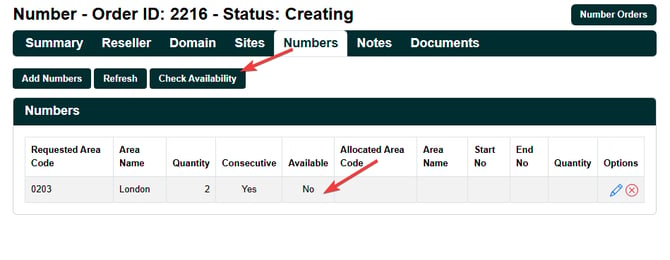
Check the availability of the numbers you're trying to order. If the "Available" column says no, this means that the carrier has no numbers in stock for what you are trying to order. Clicking the "Check Availability" button will re check for the availability of the numbers. If the numbers aren't available then try unselecting "Consecutive" or reducing the quantity of numbers. If you do ultimately need the numbers you're ordering then raise a ticket to our support team and we can do a manual order.
IMPORTANT: It's relatively uncommon for what you are ordering to be unavailable, however it can happen especially if you're trying to order a large consecutive number range within a conserved area.
If you need a large order of conserved numbers then we can still manually request these but it requires our carrier to put your case to Ofcom that you require the numbers.
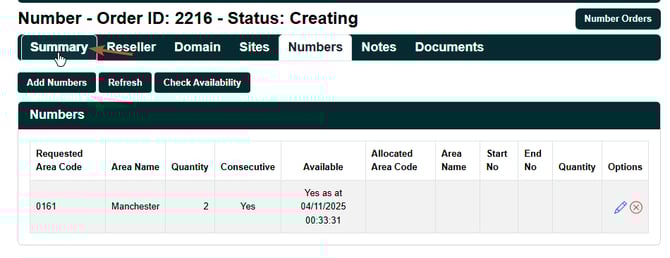
Once you are happy with the range you've ordered, click on the "Summary" tab.
From here, click "Submit"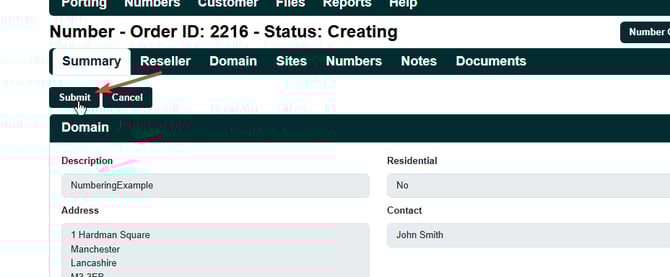
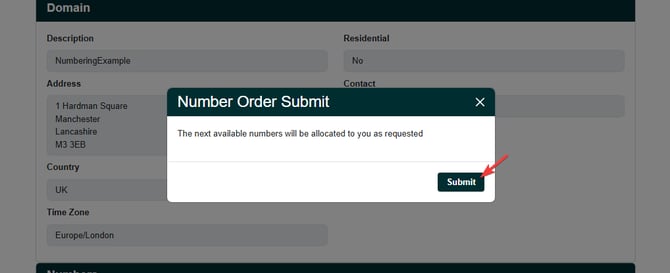
Your number order is now placed, if you head to the "Notes" tab and click "Refresh", you should see that your order is now in the "Ordered" status.
NOTE: Number orders can take 5-10 minutes to process at this point. You may need to refresh your page for the update to show up.
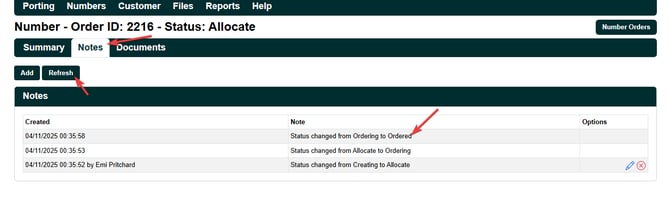
After a few minutes your order should move into "Alocated" status.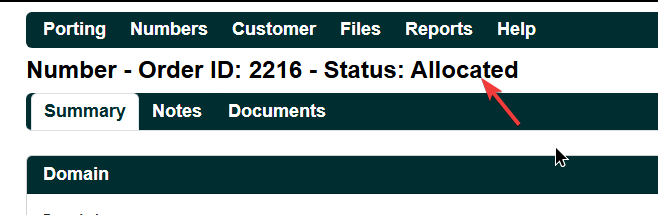
You should see your new range of numbers listed at the bottom of the summary page.
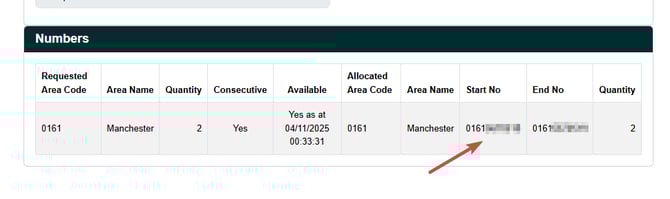
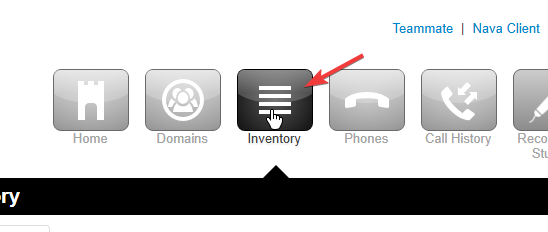
These numbers are allocated to your account, but now need to be assigned to a domain. To do this make a note of your new numbers and head to the inventory page.
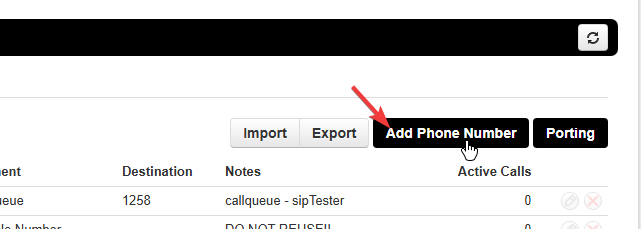
Select "Add Phone Number"
TIP: If you have ordered many phone numbers you may want to import these in bulk, for how to do this click here.
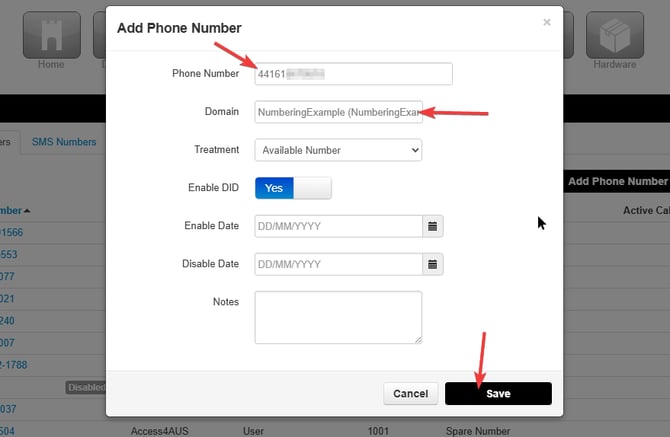
Enter the phone number and the domain, then click save.
IMPORTANT: The number must be written like "441XXX".... NOT "01XXX.....". If you don't do this your number will not work.
Now that your number is added to the domain, you will need to route the number to a user/service.
See here for a guide on routing numbers.