Mobile app logs can help our support team troubleshoot and diagnose issues with the SNAPMobile app.
IMPORTANT: It's important to understand that if the issue you're having is regarding call, you will also need to provide a SIP Trace along with the log file.
The log file when submitted only contains the past 2 hours of information, this means if you provide a SIP Trace that is more than 2 hours from when the log file was submitted, you will likely be asked to obtain further traces/logs.
iOS
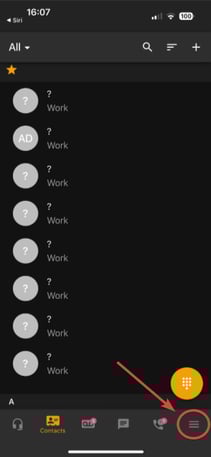
Step 1 - Select the menu at the bottom right of the app.
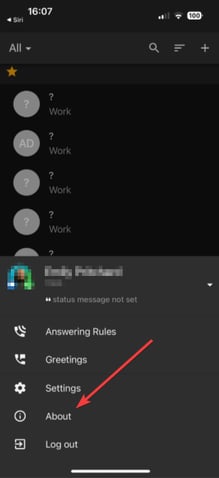
Step 2 - Select "About".
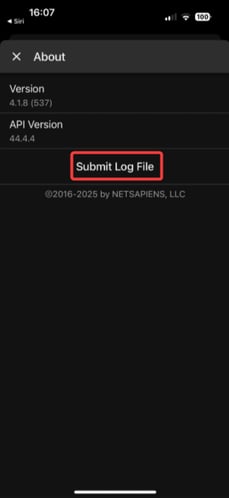
Step 3 - Click on "Submit Log File".
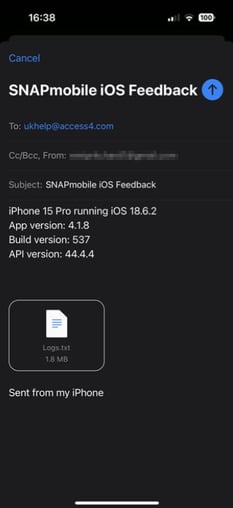
Step 4 - OPTIONAL - The below prompt will open up to email the log file, however the moment the user clicks "Submit Log File" above it also sends the log into our sever, therefore you only need to make note of the date and time this was done and submit a ticket, otherwise you can submit the email below if you wish but it is not mandatory.
Android
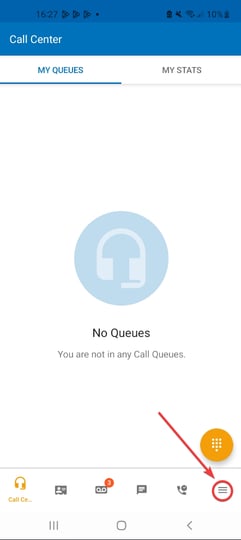
Step 1 - Click on the menu at the bottom right of the app.
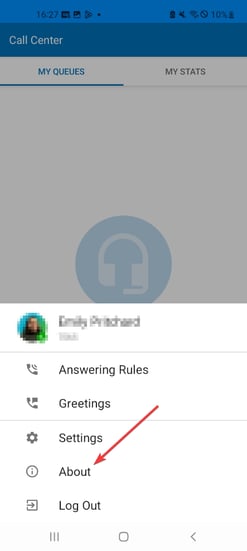
Step 2 - Select "About"
Step 3 - Select "Submit Log File"
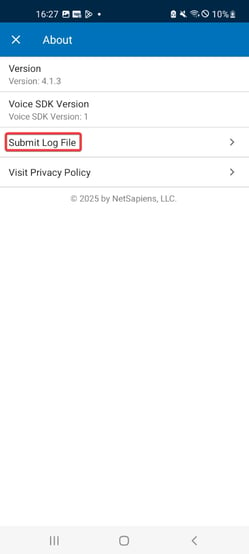
Step 4 - Click "Send"
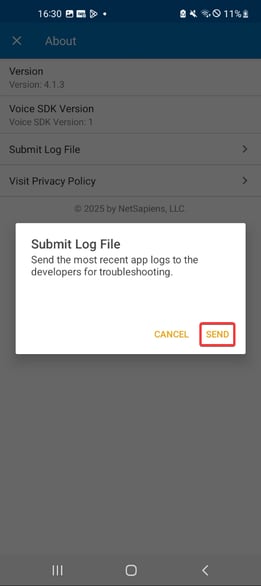
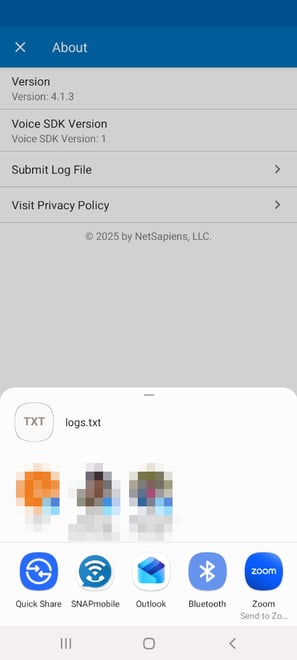
Step 5 - OPTIONAL - The below prompt will open up to share/email the log file, however the moment the user clicks "Send" above it also sends the log into our sever, therefore you only need to make note of the date and time this was done and submit a ticket, otherwise you can share/email the logs below if you wish but it is not mandatory.